
Import a character card
If you already have a character card, you can bring it in. RPDive reads a SillyTavern or Janitor card, as a PNG or a JSON file.
What you can import
A SillyTavern or Janitor card, PNG or JSON. A PNG card's picture becomes the character's avatar. A JSON card has no picture, so the character starts without an avatar.
The example in this guide is Wren Hollis, the lighthouse keeper from Make a character, written as a SillyTavern card in a JSON file.
Open Import a card
Open Characters and press Import a card at the top. Studio's My worlds page has the same button and opens the same dialog.

As a character or as a world
The dialog is called Import a character card. Under Import as you pick one of two choices:
- As a character: Into your characters, word for word. Ready in seconds.
- As a world: A world draft in Studio, with places and an opening. Takes a few minutes.
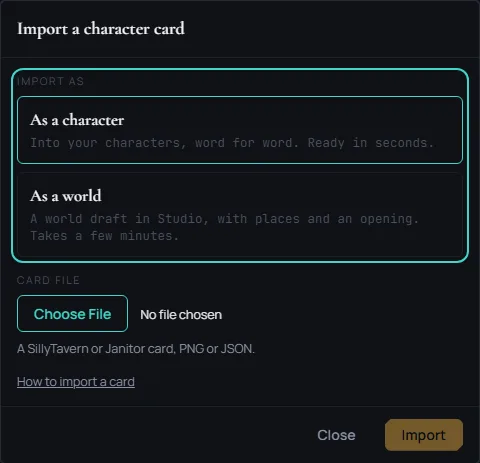
As a character is picked when the dialog opens. Under Card file, choose your card, then press Import.
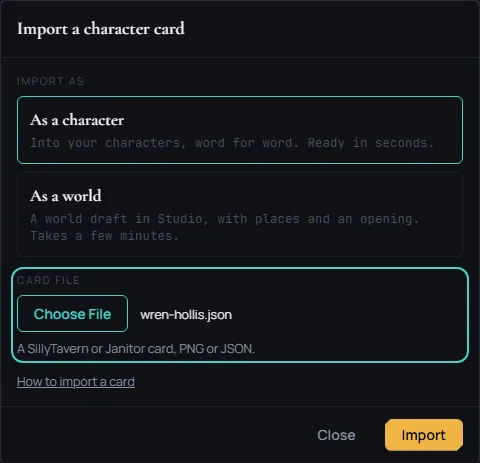
An import as a world runs on its own. You can close the dialog while it works, and the world appears in My worlds when it is ready. If you leave the dialog open, you land on the new world when it is done. The steps below follow the As a character choice.
After the import
The dialog reads and checks the card, then says Wren Hollis is in your characters. If part of the card has no place in a character, the dialog lists what did not come over as it was. Wren's card had a second greeting, and a character has one greeting, so that is the note you see.
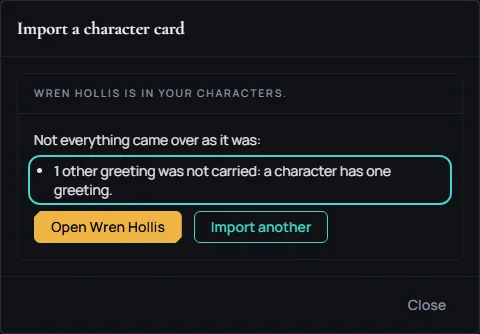
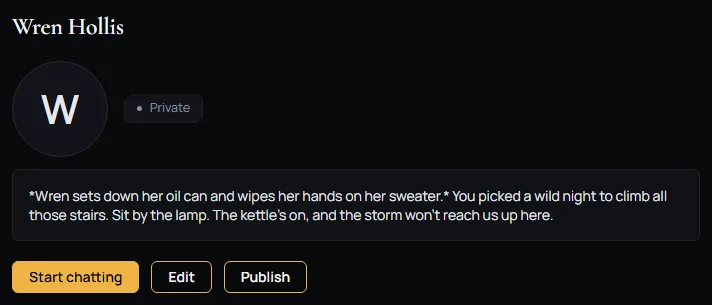
Press Open Wren Hollis to see her page. She is private to you, and you can edit her like any character you made yourself. For the fields, see Make a character.
Bringing a Character.AI character
To bring a character you made on Character.AI, follow Moving from Character.AI.
When it is ready
When the character you imported is ready, you can publish it for review.